
|
|
|
info@grayfoximages.com |
§
|
Back in the days of film, slides were scanned on a Nikon 4000 or 5000 scanner, using Nikon's scanner software to make simple adjustments with tools for exposure, levels, curves, saturation, etc. Final adjustments were done in Adobe's far more powerful Photoshop application. But with the advent of digital SLRs, RAW conversion software became an increasingly important part of the photographer workflow. At first, Photoshop was still a vital component of the workflow for final image processing. However, while Photoshop remains a singularly powerful and sometimes irreplaceable image processing tool, RAW converters now include many of the same types of tools, and increasingly it is possible to prepare a final output directly from a raw converter except in the case of the most difficult images. Over the years, I've tried several RAW converters, including BreezeBrowser, Canon's Digital Photo Professional, Capture One, Adobe Camera Raw, Adobe's Lightroom, RawShooter premium and Bibble Pro, the last two of which are now defunct. As a result of having used so many RAW converters, I have very definite ideas about what a raw converter should be capable of. RAW Converter Features The first and most essential criterion for RAW conversion software is conversion quality -- an uncompromisable essential. That's the purpose of a raw converter, and they've been around long enough so that mediocre conversion quality is no longer acceptable. A big part of that is accurate colors, preferably out of the box. Color editing capability is important, but if one has to make drastic adjustments to get the effect one wants, the likelihood of success is reduced. Besides color, conversion quality also includes detail extraction, sharpening without halos and noise reduction. When there are many files to process performance (speed) is also important. The following list summarizes these factors.
In addition to conversion quality and performance attributes, a number of functionality and convenience attributes, accessible through a user interface, can be identified. Each of these will be weighted differently by different users, based on experience, technical needs and personal preferences. For discussion purposes, let's divide the discussion of RAW converter controls into five categories: image adjustment functionality, conversion options, file management, user interface and ancillary features. Within each of those, there are many important features. The list of specific features below is divided along these lines, but the primary purpose is for discussion. Some attributes could easily be classified multiple ways.
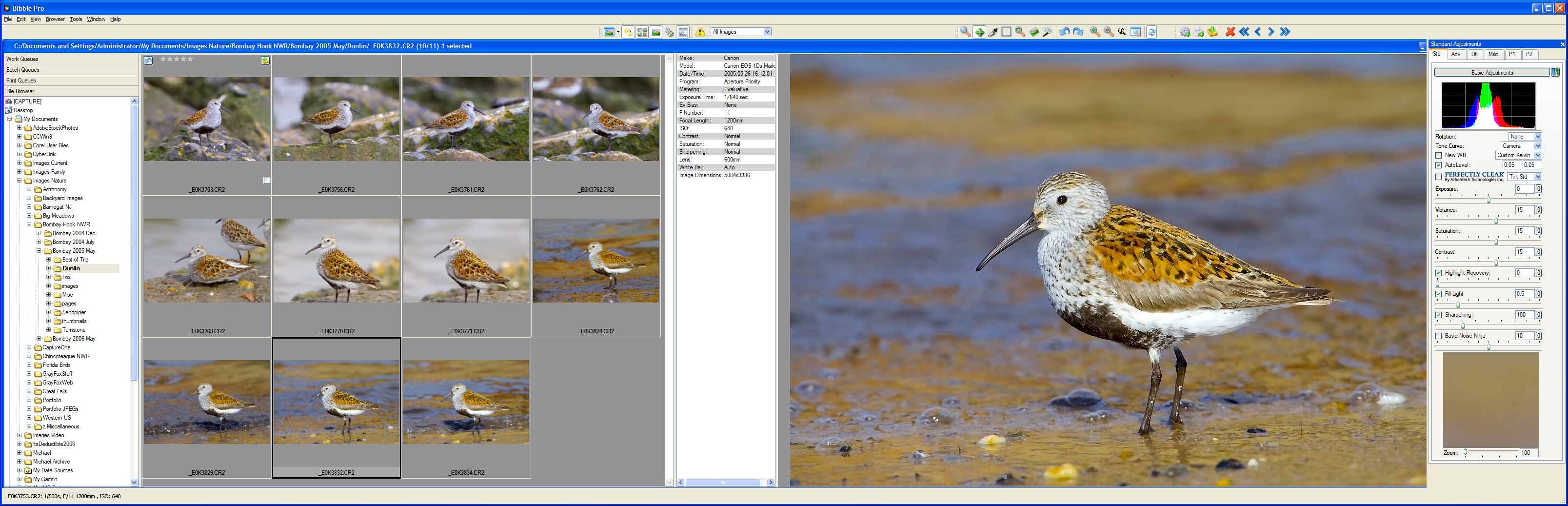
User Interface and Screen Layout Perhaps our biggest pet peeve with RAW converters, and with software in general, lies in the area of user interface. These days, designer infatuation with eye candy seems to have taken over, with inadequate regard for actual useability. The now defunct Bibble had perhaps one of the most configurable user interface of any raw converter. Our favored screen layout is shown in the screen capture of our Bibble converter configured as preferred, across our dual widescreen setup.
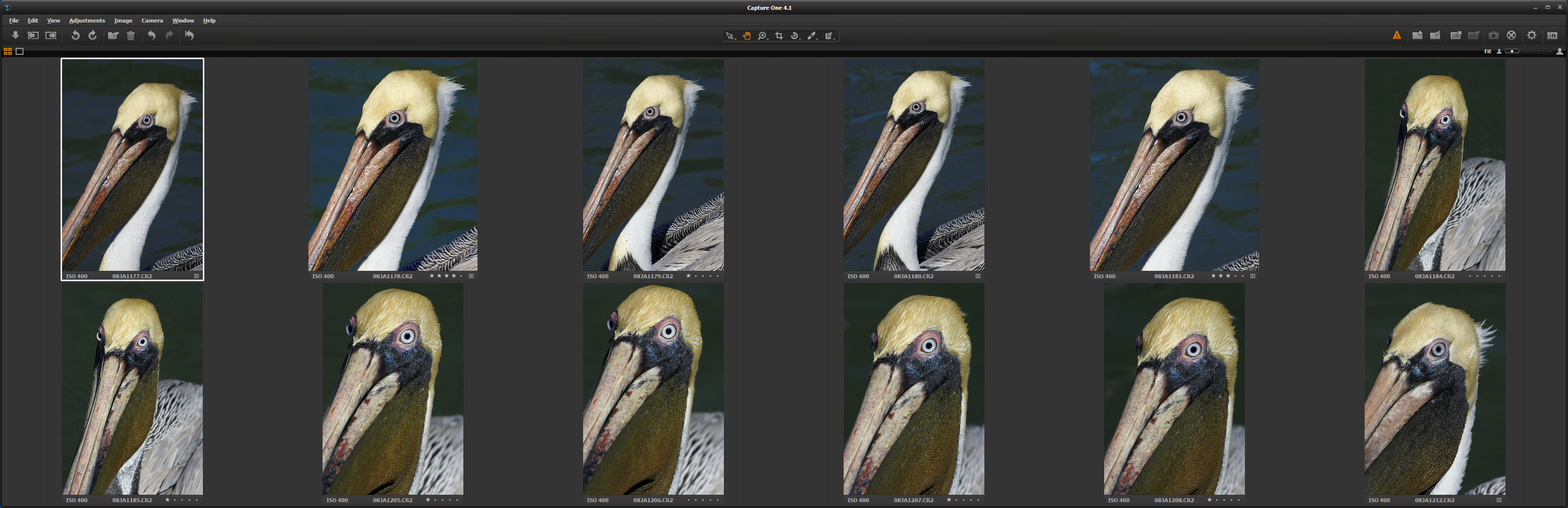
The key aspects of this layout are separate side-by-side panels for a file browser, a thumbnail grid, an image information listing, a primary image editing panel, and a tabbed set of tools. Some converters (notably Lightroom, as of the last version we tried -- and abandoned) force the user to accept placement of the thumbnail grid as a filmstrip across the bottom of the screen, with no option for alternative placement. This has the inevitable negative consequence of robbing vertical screen space from portrait orientation images. This exacerbates an already existing problem since screens are typically wider than they are tall, and placement of a filmstrip view across the bottom of the display shrinks vertically oriented images to an even smaller size compared to landscape-oriented images. However, the Capture One interface is by no means deficient with regard to this preferred configuration, and in fact the limited number of choices provided include one that is very close to the above preferred configuration. DPP is also suprisingly good in this regard. ACR has made significant advances in this area although the split between ACR and Bridge can be inconvenient. Another favorite feature is the ability to compare multiple similar images. For me, culling the hundreds of images from a shooting session or trip is the single most time-consuming step in the overall workflow. Any feature that assists in this process is appreciated, and none more so than a multi-image compare feature. This is one aspect of the initial culling process that Capture One excels at. Up to 12 images can be displayed simultaneously and panned and zoomed in unison. Rendering with sharpening applied is possible at 100%, which allows an exacting comparison of image sharpness, a key quality, especially in long lens photography. The example below shows this feature in operation, once again on a dual widescreen display setup.
RAW Converters Contrasted Digital Photo Professional. For Canon shooters, DPP is a highly viable choice, at least in terms of conversion quality. To my eyes, DPP renders colors more accurately than any other converter, virtually dead on right out of the camera. And, highlight detail differentiation is as good as it gets. Detail extraction is also very good, although no better than Capture One or ACR in my experience. The big drawback to DPP is the very limited range of adjustment functionality and a somewhat restricted user interface. While the user interface does provide some degree of configurability, I find Capture One to be superior. And multi-image comparison is quite clunky compared to CO; images can only be compared at default size -- not zoomed and panned together. Why bother? Among DPP's most notable failing are the lack of selective HSL adjustments and the fact that adjustments are stored directly in the RAW file. HSL is now standard on many other RAW converters, and its lack can occasion the need to send an image to Photoshop for finalization. Use of sidecar files to store adjustments is standard throughout the industry, and Canon's continuing to modify original RAW files is puzzling to say the least. Adobe Camera Raw. Adobe Camera Raw, which is bundled with Photoshop, has become a dominant RAW conversion capability in the industry. (The ACR conversion engine is also embedded in Lightroom.) After a shaky start, particularly with respect to color fidelity, ACR offers very good color quality as well as detail extraction. The feature set grows with each release, and the user interface remains largely traditional -- and therefore easy to learn and use. Add close integration with Photoshop and Adobe's Bridge image viewer, combined with the fact that ACR comes with Photoshop at no extra cost, and it is easy to understand why so many people make this choice. Lightroom. Lightroom, which includes both RAW conversion and Digital Asset Management (DAM), began life when the Pixmantec team brought Rawshooter's excellent image processing algorithms into ACR and Lightroom. However, the innovative and highly intuitive Rawshooter user interface died on the cutting room floor, supplanted by Adobe's alternative user interface. Perhaps the most troubling Lightroom choice was its approach to image cropping and rotation, the "drunken sailor" crop. This involves dragging the image around inside a crop frame which remains fixed and centered on the computer screen rather than than the universally accepted approach of defining the crop and rotation over the top of a static image display. This can produce disconcerting visual effects -- such as the image sliding all over the screen as one manipulated the crop handles. Also, part of the image can end up temporarily hidden outside the crop window. As a result, my trial copy of Lightroom never got a second look. Capture One. Phase One's Capture One RAW converter broke new ground when it was introduced. Originally designed to process files from Phase One's medium format digital backs, Capture One was later offered to the much wider DSLR market. Capture One's user interface is highly configurable and allows most panels and controls to be positioned in locations that fall naturally to hand, establishing a standard for user interface, screen layout and work style that remains unsurpassed. Capture One's color characteristics and detail extraction were excellent from the beginning and remain so today. Worthy of note are CO's outstanding Color Editor and Photoshop-like Layer Masking features. Capture One is currently my converter of choice because of its unsurpassed conversion quality as well as a highly useful multi-image compare capability. The current version provides such excellent conversions that I rarely take files into Photoshop. Summary The preferences expressed above are the result of a number of years of experience using many different raw converters, and they are strictly mine only. Others may come to completely different conclusions. Fortunately, raw converters continue to evolve and improve, with the result that users have more and better choices than ever before. Nevertheless, our idea of what constitutes a good converter have remained relatively stable:
|
§
| If you would like to express thoughts on this subject use the link to send an email. | © 2015 Michael W. Masters |
| Notice: All images and written material on this web site are © 1999-2015 Michael W. Masters. All rights are reserved under US copyright laws. Images may not be downloaded or otherwise used without written permission of the artist. Written material may be quoted under fair use so long as attribution is given. | |
 |